Facebook Leads Not Showing Up in Your Email or CRM? How to Fix the Connection
Facebook leads missing from your email or CRM? Check Leads Center first, then test with the Lead Ads Testing Tool. Six causes, how to check each, and how to fix it.

Start in Meta Business Suite, not in your CRM. Open Leads Center (in Business Suite, under All tools) and look for the lead you expected. If the lead is there, your ads work and the problem is the connection between Meta and your email or CRM. That connection is almost always broken for one of six reasons: the integration is watching the wrong form, the person who connected it lost access, lead access is limited to a different app, the CRM rejects the data, notifications go to an inbox nobody reads, or the form sits on a different Page. If the lead is not in Leads Center at all, the ads or the form are the problem. No integration will fix that.
We make money running ads on Meta, so we have an interest in this. A lead that never reaches you looks like a bad campaign, and the ads get blamed. Across more than 300 Lemon Agency clients, a broken lead pipe has been one of the quietest ways to waste a budget. The ads keep spending and the reports show results. The phone stays silent.
Where do Facebook leads go if they don't reach your email?
They stay inside Meta, attached to the form and the Page. Meta does not email you the contents of a lead by default. Every lead from an Instant Form is stored on the Page that owns the form, and you can reach it in three places:
- Meta Business Suite > All tools > Leads Center. Here you see a list of leads with name, contact details and form answers, and you can mark each one's status.
- Your Page > Publishing tools (or Forms Library) > the form > Download. This gives you a CSV of all leads from that form.
- Ads Manager > the ad > Results column. It shows how many leads Meta counted, but not who they are.
Compare the numbers. Say Ads Manager shows 14 leads this week, Leads Center shows 14, and your CRM shows 3. Then 11 leads exist and never got to you. Download them as a CSV today.
We treat Leads Center as the source of truth. Your CRM is a copy. When the two disagree, the copy is wrong.
Is your integration watching the wrong form?
Most connectors, including Zapier, Make and many native CRM integrations, do not listen to "all leads on the Page". They listen to one specific form you picked when you set them up.
Symptom: Leads arrived fine for weeks, then stopped right after someone launched a new campaign or edited the form. Ads Manager still shows leads.
How to check: In Ads Manager, open the ad, go to the ad level and look at the Instant Form section to see which form the ad uses. Write down the form name and creation date. Then open your connector and find the trigger settings. In Zapier, that is the "New Lead" trigger, which has a Page field and a Form field. If the form in the connector is not the form in the ad, you have found the problem.
How to fix: Point the connector at the new form, or add a second trigger for it. A better habit is to stop creating new forms for every campaign. Duplicating a form creates a new form ID, and the connector does not follow it. Keep one or two forms that you reuse, and when you must make a new one, update the connector the same day. Then run a test lead (see the testing section below) before the ads go live.
Did the person who connected the integration lose access?
This is the second most common cause, and the one people call "the integration expired". A connector reads leads through the Facebook account of the person who set it up. If that person loses access, the connector loses access too.
Symptom: Leads stop on a specific day for no visible reason. The day often lines up with an employee leaving, a freelancer being removed, a password change, or someone's personal Facebook account getting restricted.
How to check: In your connector, look at the connected Facebook account and whose name is on it. In Zapier, go to My Apps (or Connections) and check whether the Facebook Lead Ads connection shows an error or asks you to reconnect. Then, in Meta Business Suite > Settings > People, confirm that this person still has full control of the Page. Also check the integration's history or task log. Many connectors show an "unauthorized" or "permission" error on the date it broke.
How to fix: Reconnect using the account of someone who will stay with the business, ideally the owner. That person needs full control of the Page, not just ad account access. After reconnecting, re-select the Page and form, because some connectors reset these. Then download the CSV from Leads Center for the dates when the connection was down and enter those leads by hand. If your Page and ad account were set up in a hurry, our guide on setting up your Meta Business account and ad account shows how to keep ownership with the business instead of one person's profile.
Is lead access limited to one app?
Meta has a setting called Leads Access (in Business Settings, under Integrations). It decides which people and which apps may read leads from a Page. By default, every app connected to the Page can read them. Once someone assigns access to one specific CRM, every other app gets nothing.
From our accounts: Meta lead form leads can fail to reach your CRM with no error at all. In one case we diagnosed in August 2026, the Page had lead access manually limited to one integration, and the other one received nothing. The second integration looked healthy. It was connected, it pointed at the right form, and it showed no failures. Meta simply never handed it the leads.
What this means for you: "no error" does not mean "working". This setting is easy to change by accident when someone connects a new CRM and clicks through a setup screen.
Symptom: You have two tools (for example, a CRM and a Zapier flow that emails you). One receives leads and the other does not, and neither shows an error.
How to check: In Meta Business Settings, go to Integrations > Leads Access and select your Page. Look at the CRMs tab. If one CRM is listed with access and your other tool is not, that is your answer. The Lead Ads Testing Tool will also show which app failed (see below).
How to fix: Either add the missing app to the list, or remove the restriction so all connected apps can read leads. Then send a test lead and confirm that both tools receive it.
Is your CRM rejecting the lead or mangling the fields?
Sometimes the lead leaves Meta and the CRM refuses it, or accepts it in a form nobody can use.
Symptom: Leads arrive with empty fields, wrong fields, or not at all after a form edit. Or the connector log shows the lead was "sent" and the CRM shows nothing.
How to check: Open the connector's task history and click into one recent run. Check the data Meta sent and what the CRM answered. Typical failures are a required CRM field with nothing mapped to it, a phone number in a format the CRM refuses, or a question you added to the form that is not mapped anywhere. If the CRM uses duplicate rules, check whether it merged the lead into an old contact without telling anyone.
How to fix: Map every field in the form to a field in the CRM. Make CRM fields optional if the form does not always fill them. After any form edit, run a fresh test lead, because edits can change field names.
From our accounts: Forms created through the API return the answer key (like "b1") in the lead data, not the answer text. Sales reps saw "Budget: b1" in the CRM until we added an answer dictionary. That happened in our lead form integrations in September 2026. The lead technically "arrived", but the most useful qualifying answer was unreadable.
The lesson: open three real leads in your CRM and read them the way your salesperson would. If an answer looks like a code, ask whoever built the form or the integration for a lookup table that turns keys back into text. Forms built in Meta's own form editor usually send the text, but don't assume. Check. For more on which questions to put in the form in the first place, see our guide to setting up Facebook Instant Forms for real customers.
Are the notifications going to an inbox nobody reads?
The lead may reach the CRM perfectly and still go unseen, because the alert goes somewhere nobody looks.
Symptom: The lead is in the CRM, but you found out days later. Or the alert email exists, but it sat in spam, in a shared inbox, or in the address of the person who set up the account two years ago.
How to check: In your connector or CRM, open the notification step and read the recipient address. Search your inbox, spam and Promotions tab for the sender. Ask yourself who actually opens that inbox every day.
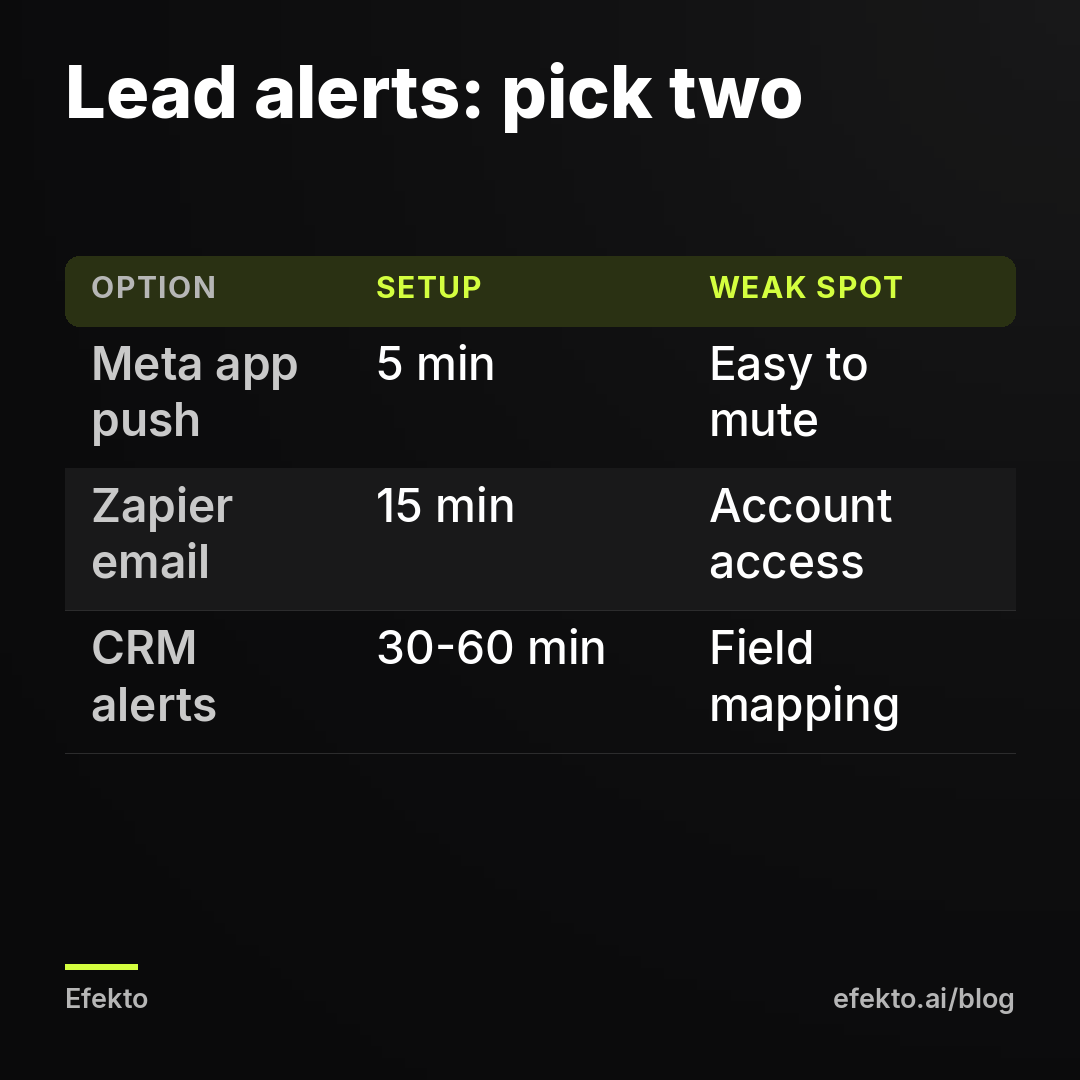
How to fix: Send alerts to a phone, not only to email. Use two channels for the person who calls leads back. Below are the simple options, from least to most setup:
| Option | Setup time | What you get | Weak spot |
|---|---|---|---|
| Meta Business Suite mobile app, notifications on | 5 minutes | Push alert on your phone for new leads | Only people with Page access, easy to mute by accident |
| Zapier or Make: new lead > email | 15 minutes | Email with name, phone and answers | Breaks if the connected account loses access |
| Zapier or Make: new lead > SMS or Slack | 20 minutes | Text or chat message within minutes | Same as above, plus SMS costs on some plans |
| Native CRM integration + CRM alerts | 30-60 minutes | Lead in CRM with owner and task assigned | CRM field mapping must be kept up to date |
We would set up two of these at once: the CRM integration, plus a direct email or text from the connector. If one breaks, the other still gets through, and the gap between them tells you something broke. What you do after the alert arrives is a separate topic, covered in our post on following up on Facebook leads fast enough to book the job.
Is the form attached to a different Page?
This happens less often, but it is confusing when it does. A business with two Pages, or an old Page plus a new one, can end up running ads with a form that belongs to the Page the integration does not watch.
Symptom: Ads Manager shows leads, the connector shows no errors, and Leads Center for your main Page is empty.
How to check: In Ads Manager, open the ad and check which Page it runs from. Then switch Pages in Meta Business Suite (top-left Page selector) and open Leads Center for each one.
How to fix: Connect the integration to the Page that actually owns the form, or rebuild the form on the right Page and update the ad. Download the leads from the wrong Page as a CSV so they don't get lost.
How do you test the connection with the Lead Ads Testing Tool?
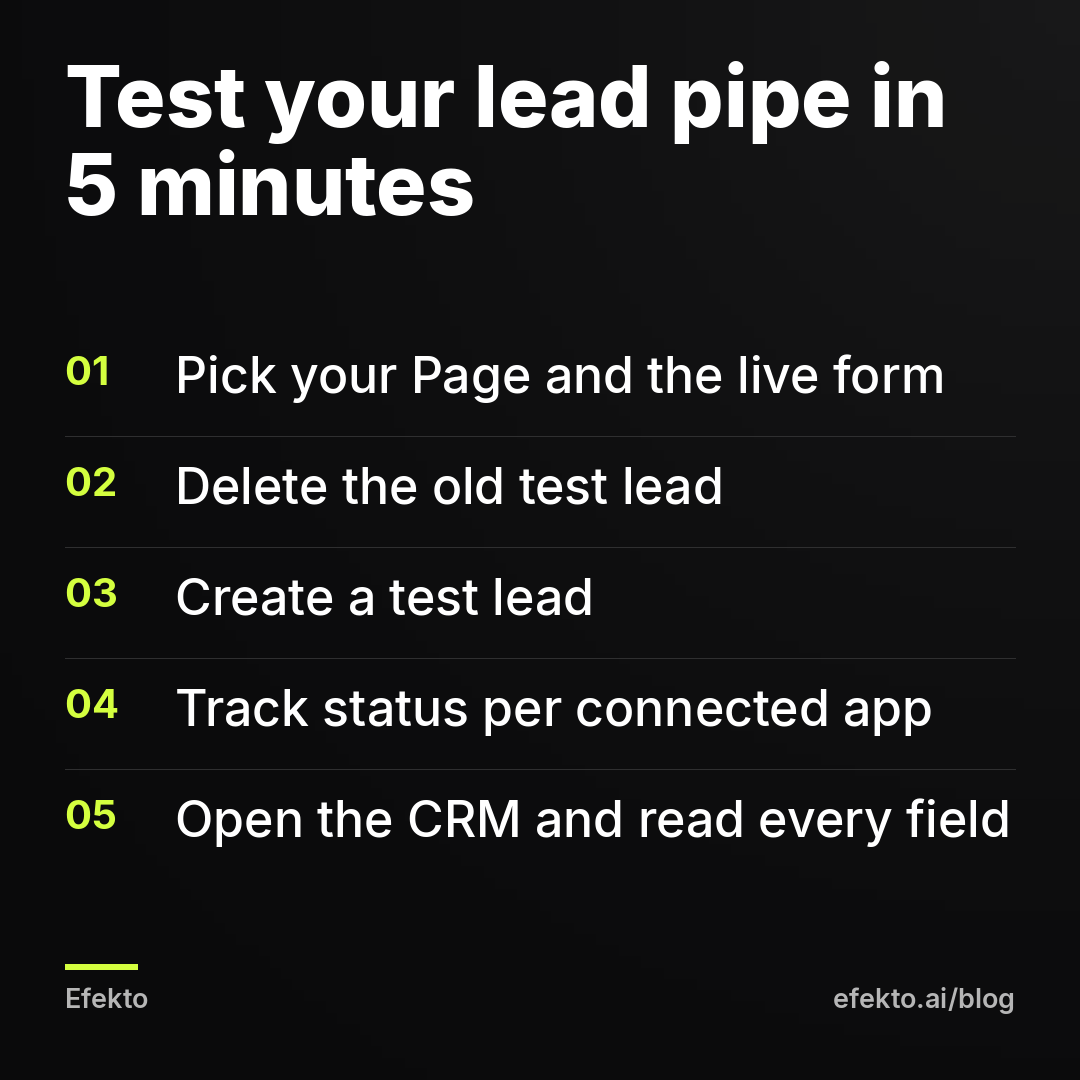
You send a fake lead through the real pipe and watch where it stops. Meta's Lead Ads Testing Tool lives at developers.facebook.com/tools/lead-ads-testing. You need to be logged in as someone with admin access to the Page. It takes about five minutes.
- Open the tool and select your Page, then the exact form your live ad uses.
- If the tool shows an existing test lead for that form, click Delete lead. Each form allows only one test lead at a time, and an old one blocks a new one.
- Click Create lead. Meta fills in a sample lead and sends it to every app connected to the Page.
- Click Track status. You see each connected app and whether delivery succeeded or failed, sometimes with an error message.
- Check the far end: the CRM record, the email and the text. Read the fields, not just the fact that something arrived.
How to read the result:
| What Track status shows | What it usually means | Go to section |
|---|---|---|
| Your app is not listed | App not connected to this Page, or form on another Page | Wrong form / different Page |
| App listed, status failed, permission error | Connected account lost access | Lost access |
| One app succeeds, another gets nothing | Leads Access limited to one app | Lead access limited |
| Success, but CRM is empty or fields are wrong | CRM rejects or mismaps data | CRM rejecting the lead |
| Success and CRM is fine, but nobody saw it | Alert goes to the wrong place | Notifications |
Run this test after every change: a new form, a form edit, a new CRM, a removed employee, a password change. We also run it once a month even when nothing changed. Five minutes a month is cheap compared with finding out three weeks later.
How many leads does a broken connection cost?
Count it in leads and days, because that is what you lose. Here is a worked example with made-up numbers.
For example: say your budget is $30 a day and you get a lead for about $25. That is roughly 1.2 leads a day. The person who set up Zapier leaves on a Monday, and nobody notices the alerts stopped until the owner wonders why the phone is quiet, 9 days later. That is about 11 leads sitting in Leads Center. Some of those people filled out three other contractors' forms the same afternoon. If you call them on day 9, many will already have booked someone else. The ads did their job. The pipe didn't.
This is also why a quiet week deserves a two-minute check in Leads Center before you change anything in the ads.
Where does Efekto fit, and when doesn't it?
Efekto creates ads from your website, publishes them on Facebook and Instagram, and optimizes them every day: it turns off the ones that don't bring results and scales the ones that do. You approve the first batch of ads (at least 5) before anything goes live, and you can run it on your own Facebook ad account. You can see the details on how Efekto works.
Be clear about what that does not solve. If your leads are in Leads Center and missing from your CRM, that is a plumbing problem between Meta and your tools, and you fix it with the checks above whether you use Efekto, an agency or Ads Manager yourself. Fix the connection first. Changing who runs your ads won't bring back leads that are stuck in Meta.
10-minute checklist
- Open Leads Center and compare its lead count with Ads Manager and your CRM for the last 7 days.
- Download a CSV of any leads that are in Meta but not in your CRM, and call them today.
- Confirm the form in your connector is the same form your live ad uses.
- Check whose Facebook account powers the integration, and that this person still has full control of the Page.
- Open Business Settings > Integrations > Leads Access and make sure every tool you rely on has access.
- Send a test lead with the Lead Ads Testing Tool and read Track status for every app.
- Open three real leads in your CRM and check that every answer reads as text, not codes like "b1".
- Send lead alerts to two channels, one of them a phone.
If you'd rather have your ads created and optimized every day while you keep an eye on the leads, you can try it for 7 days free at efekto.ai.
- Jakub Zwoliński
Founder, Lemon Agency · Efekto · October 26, 2026